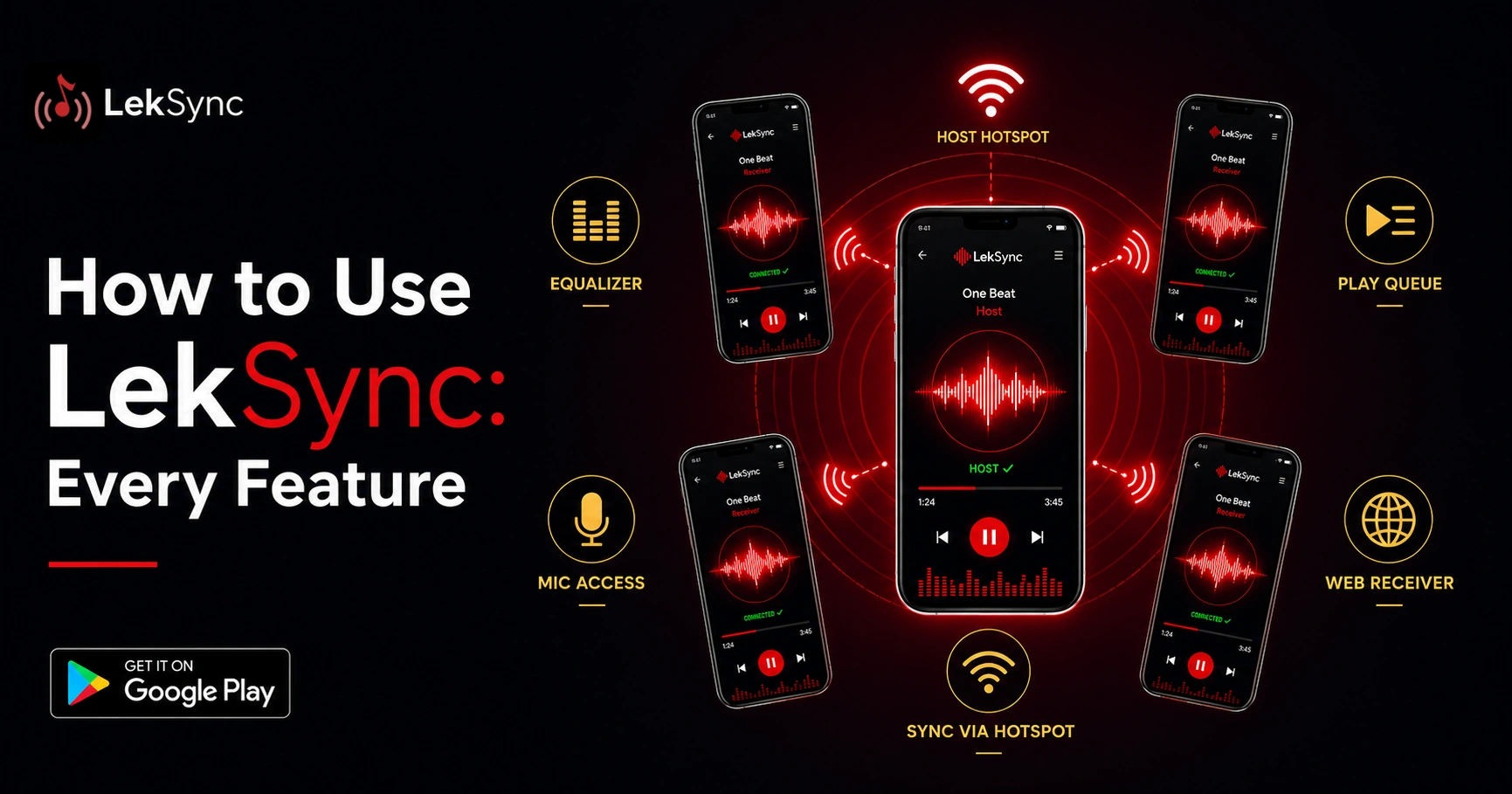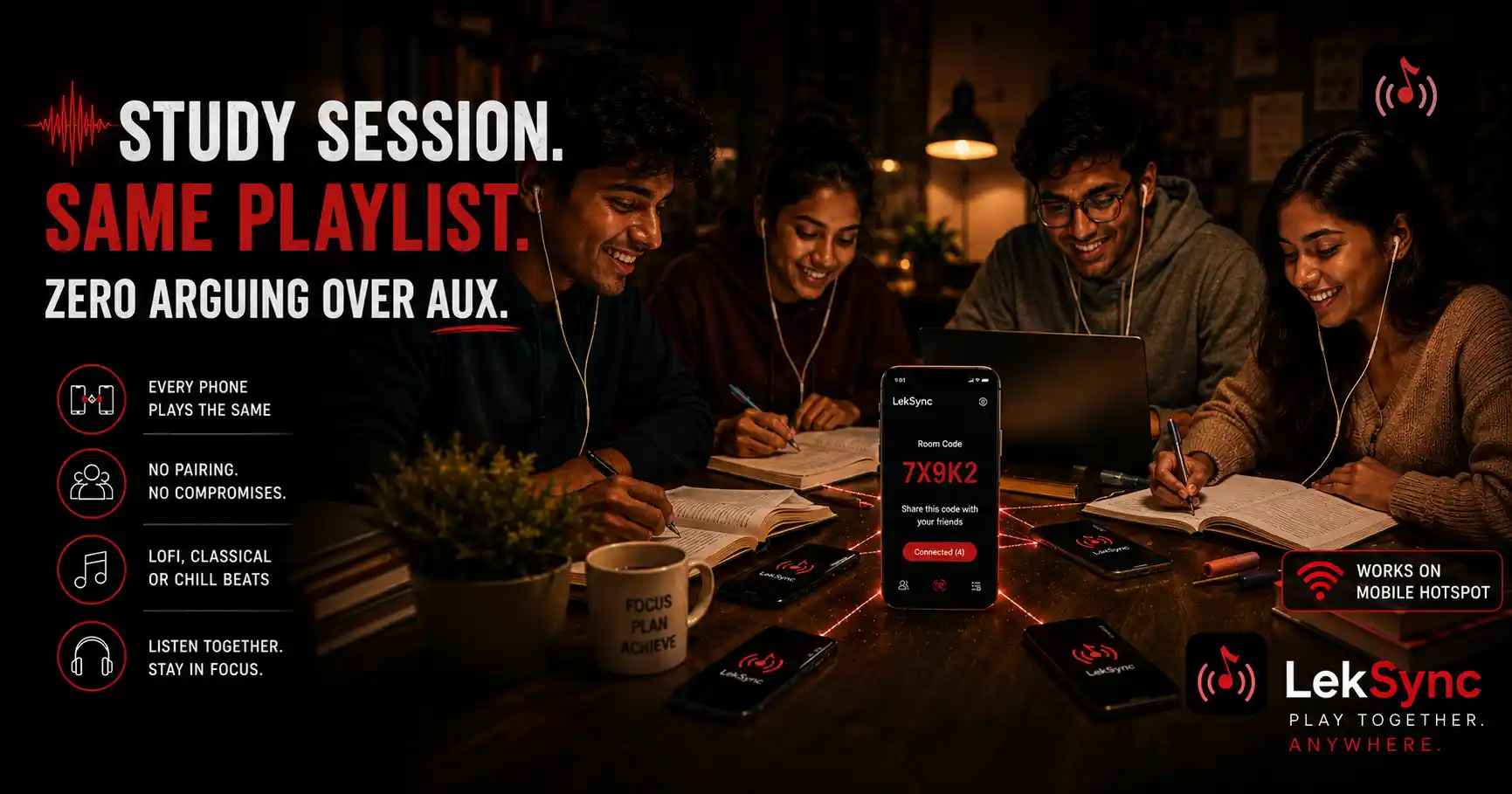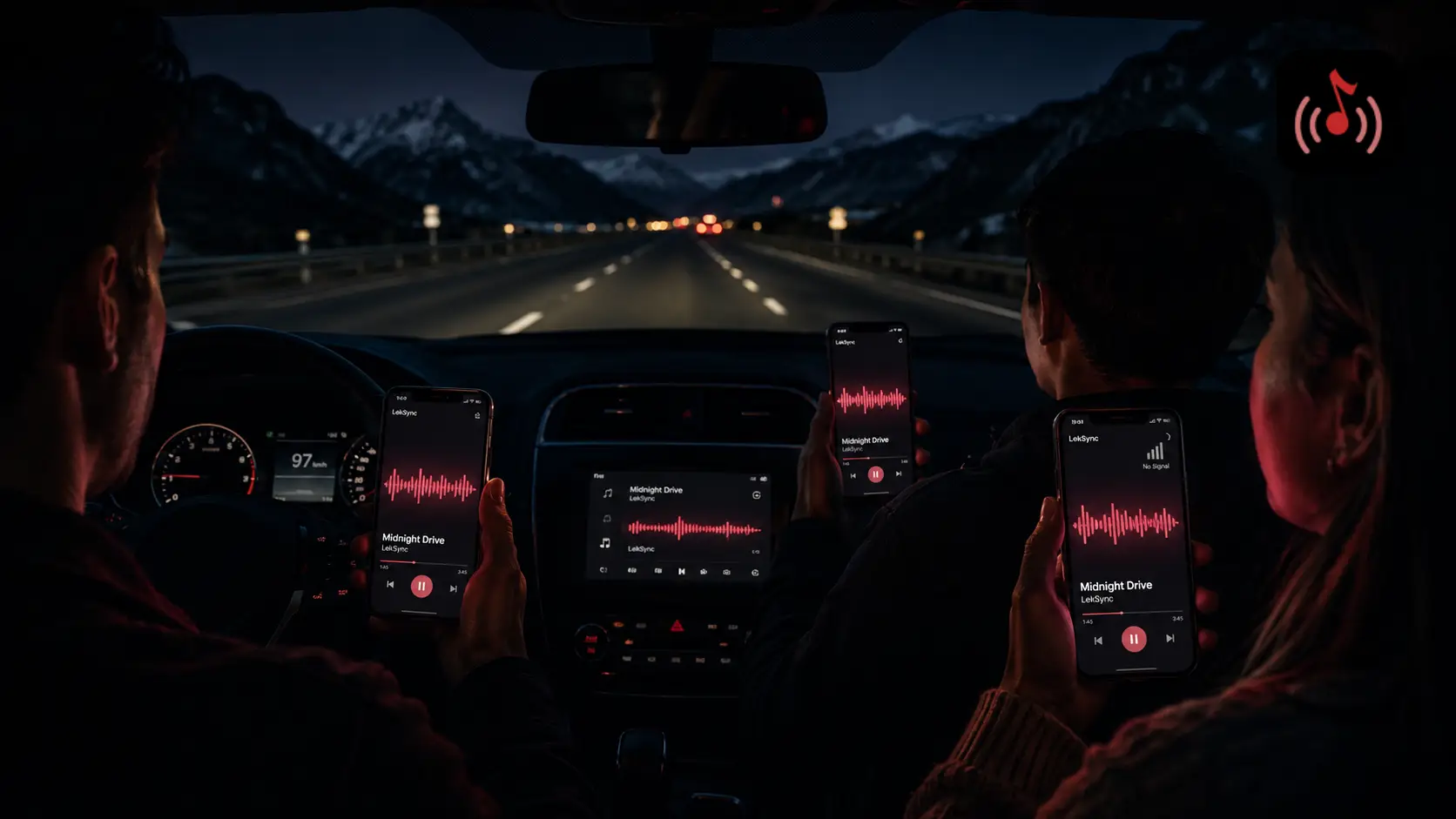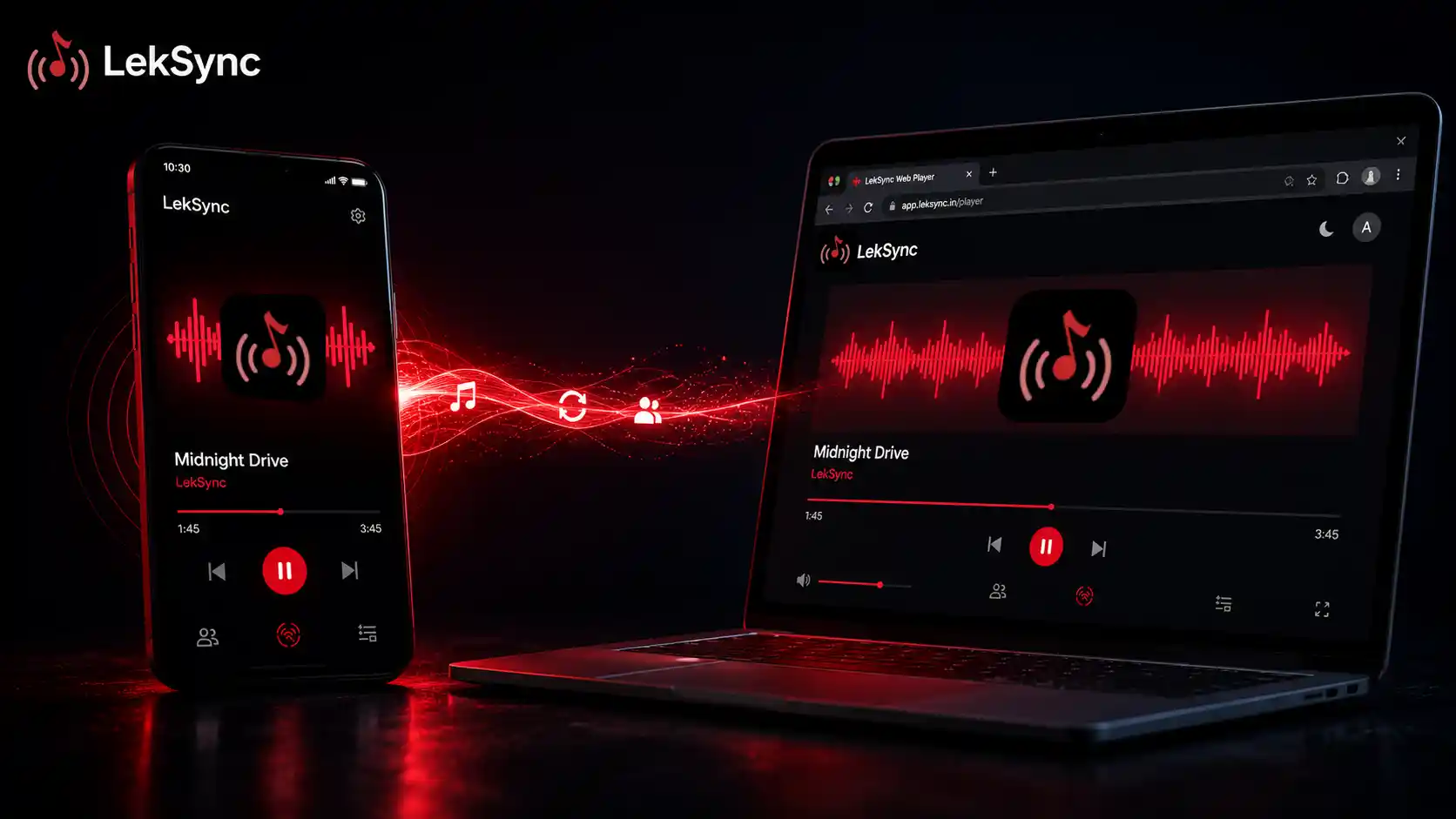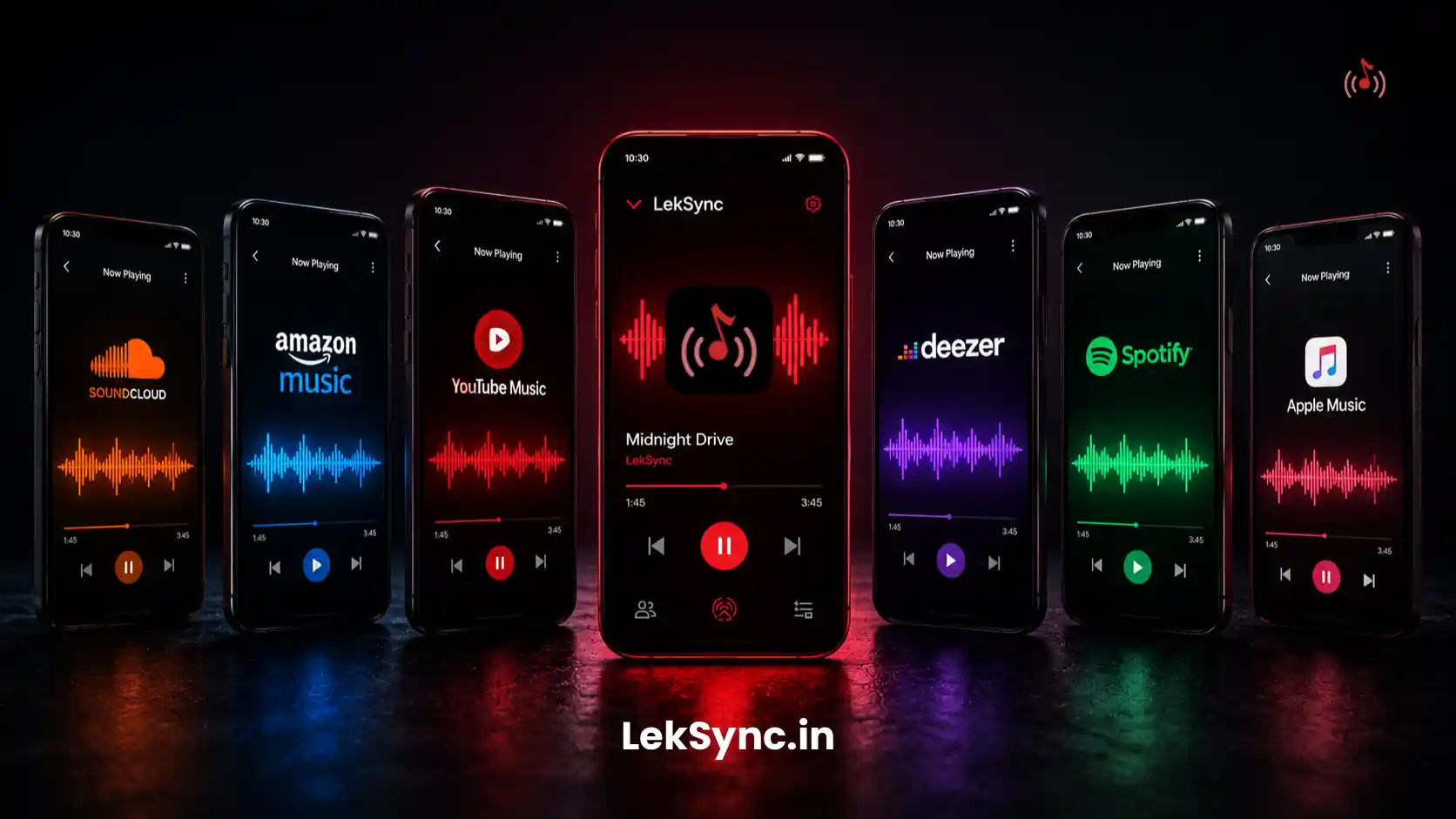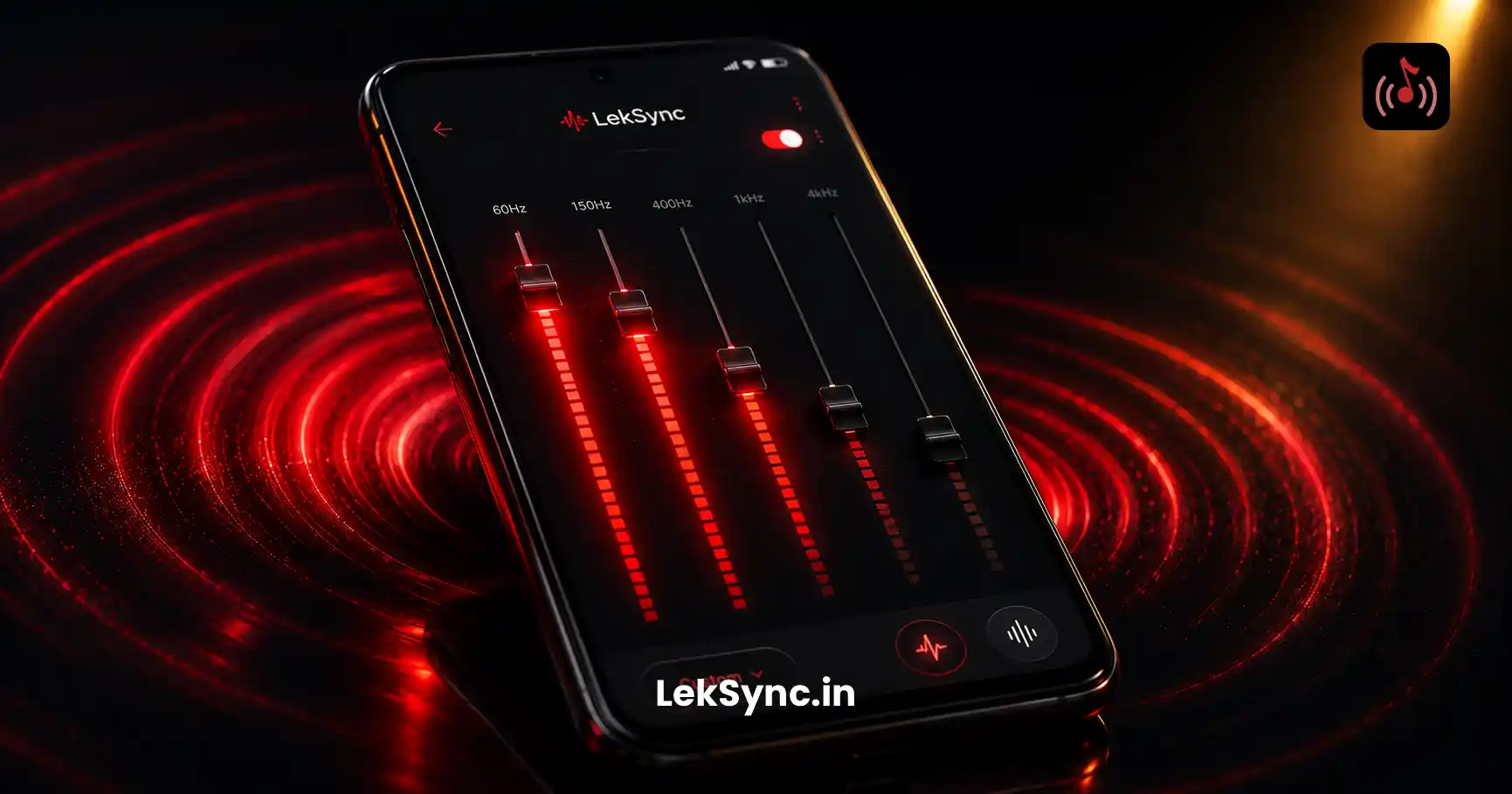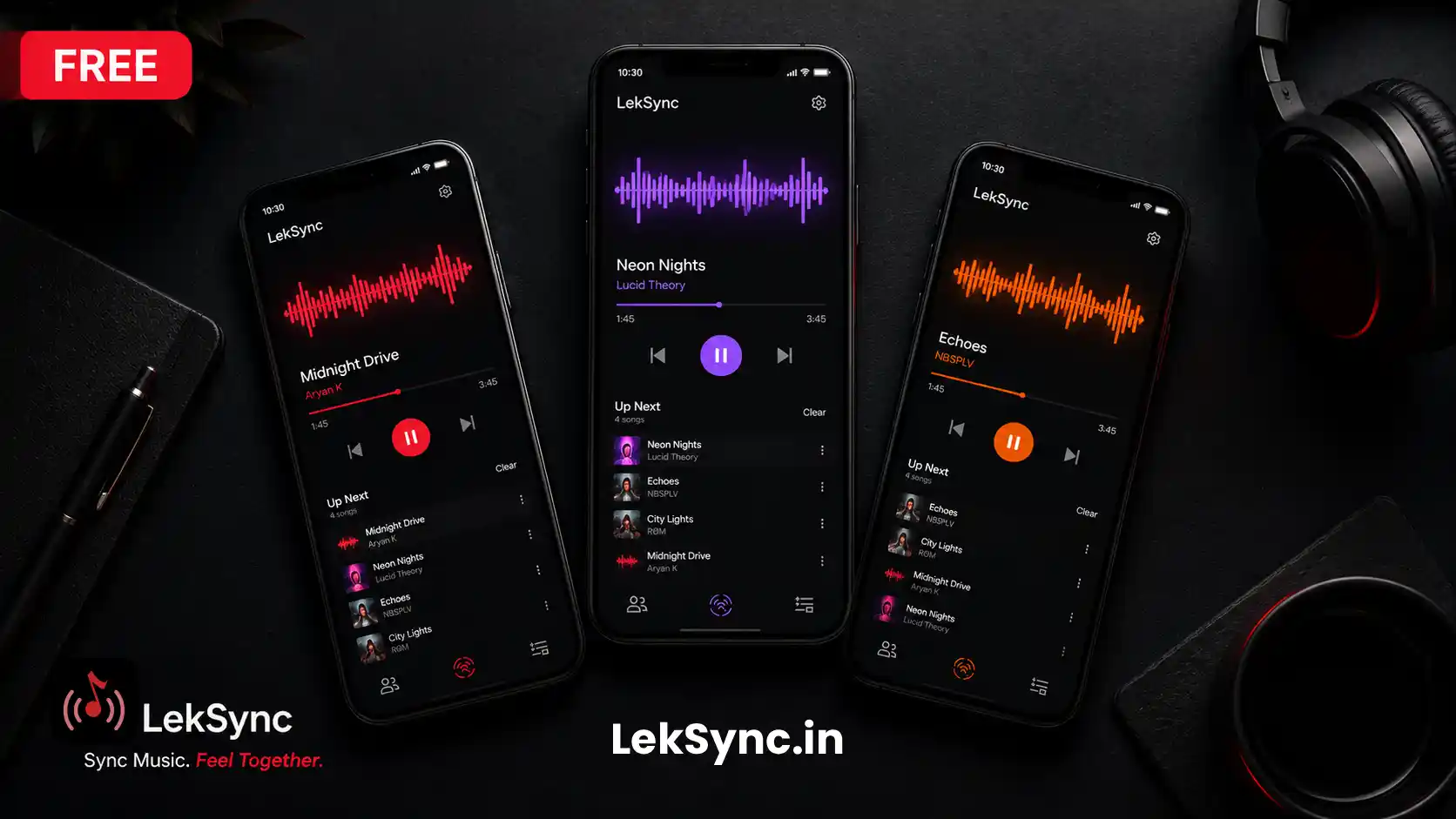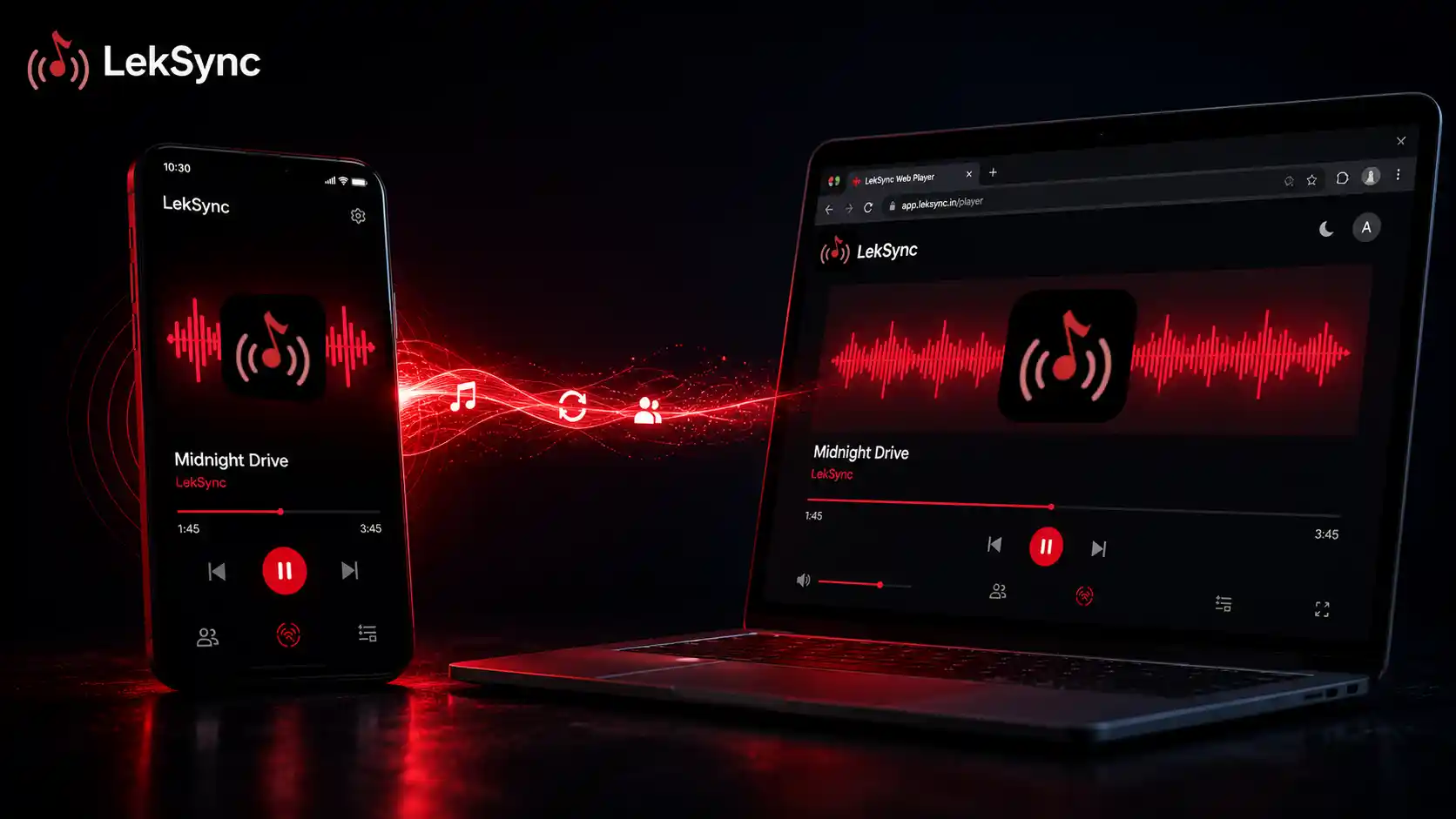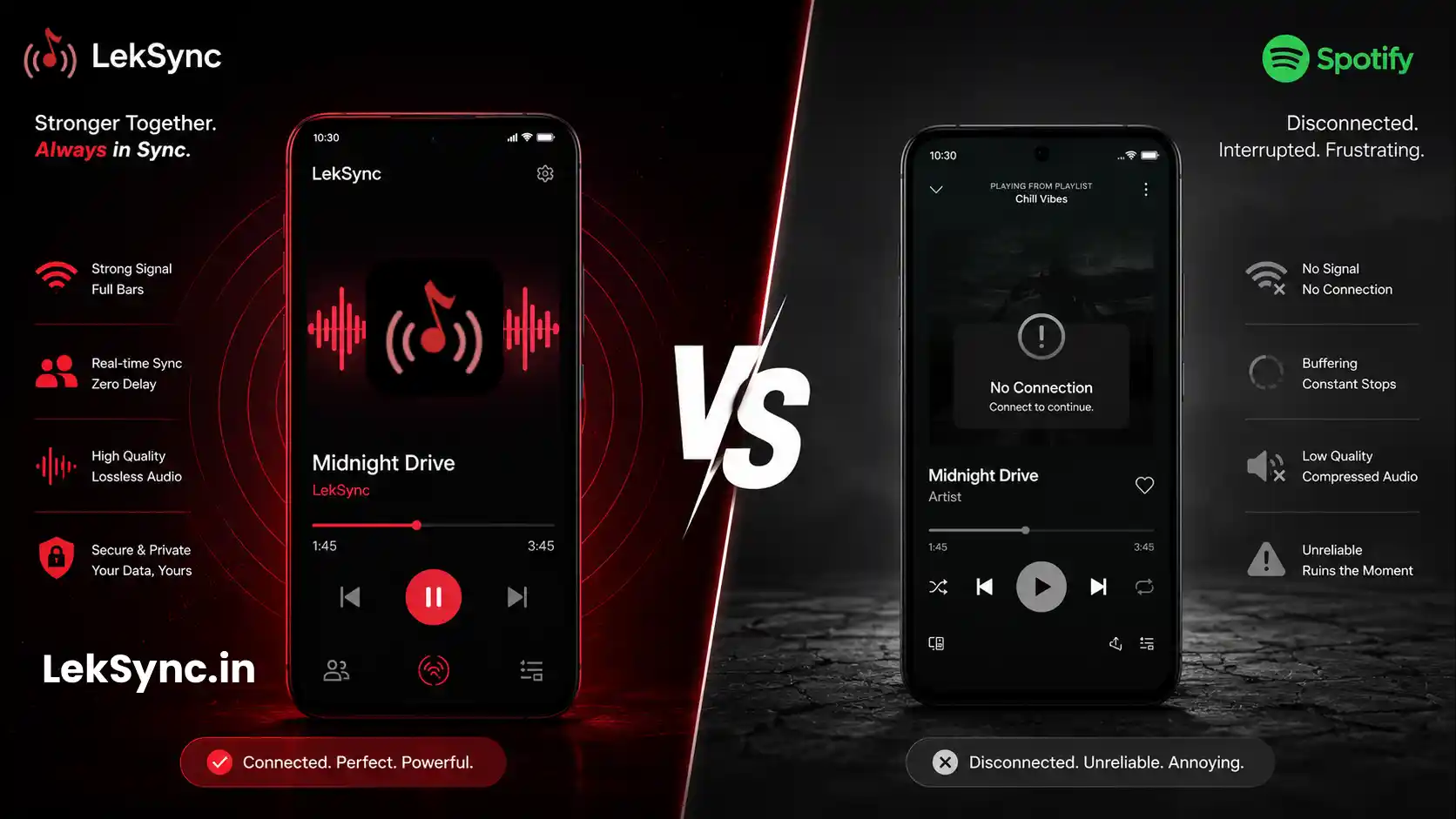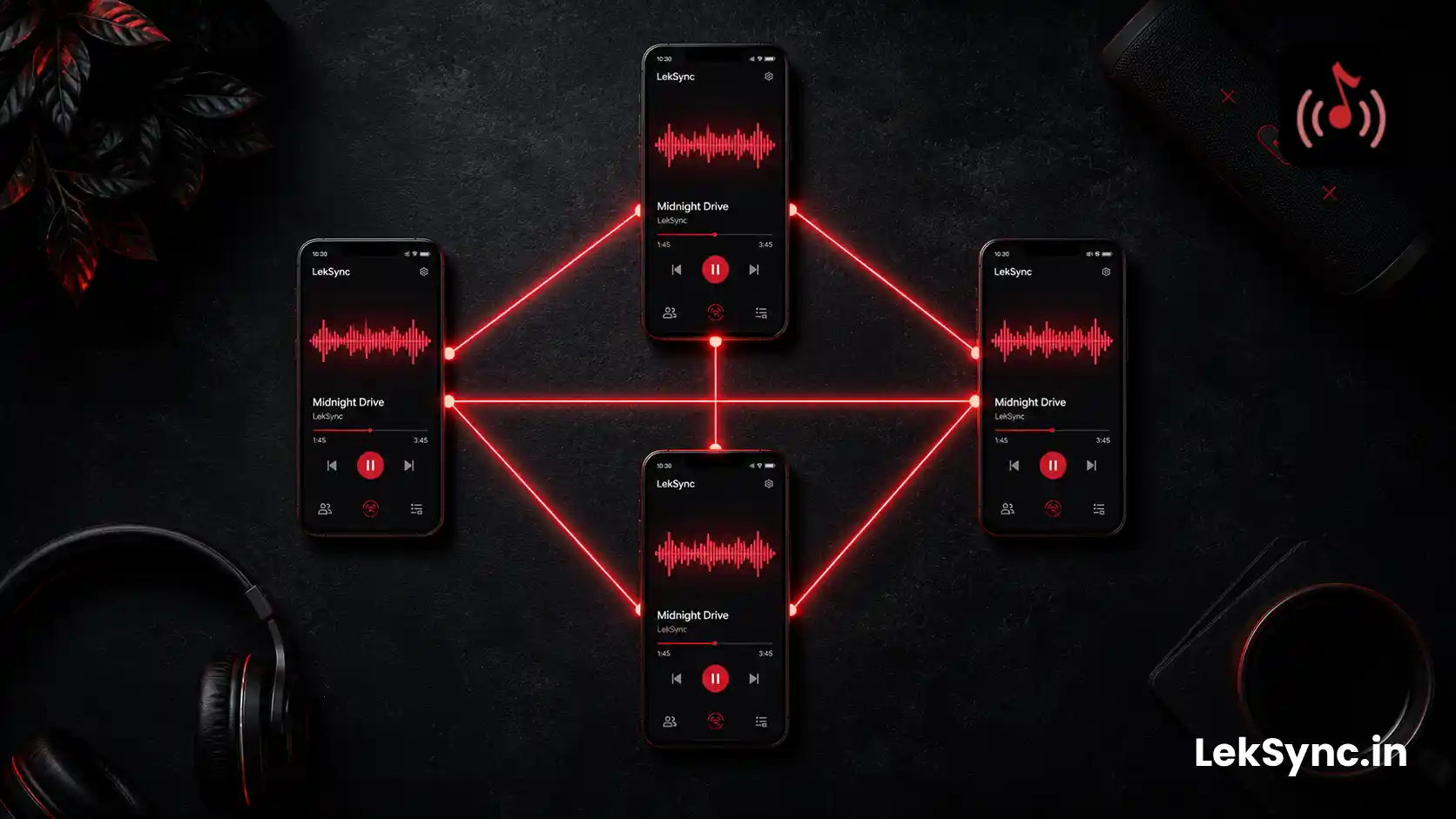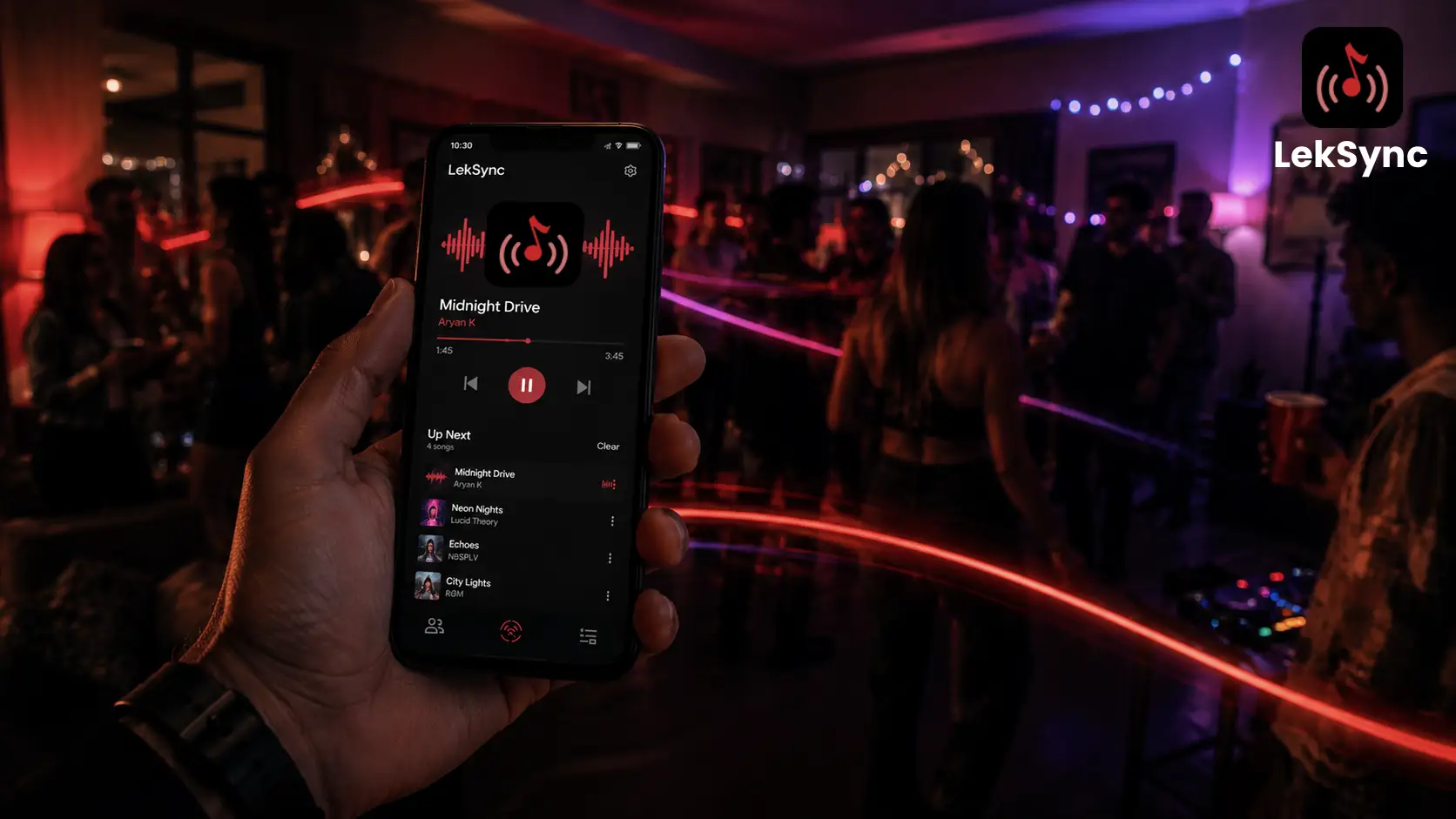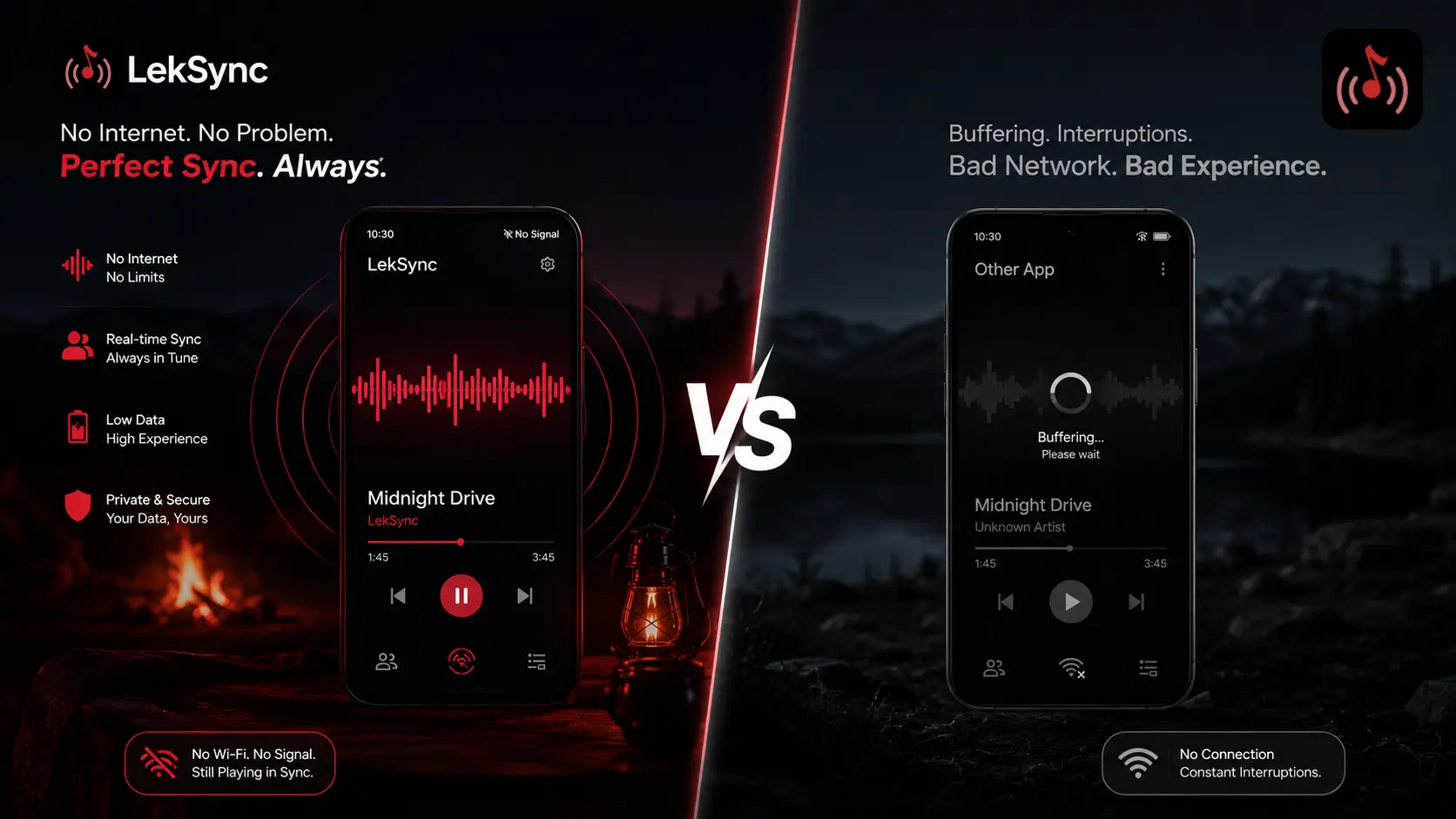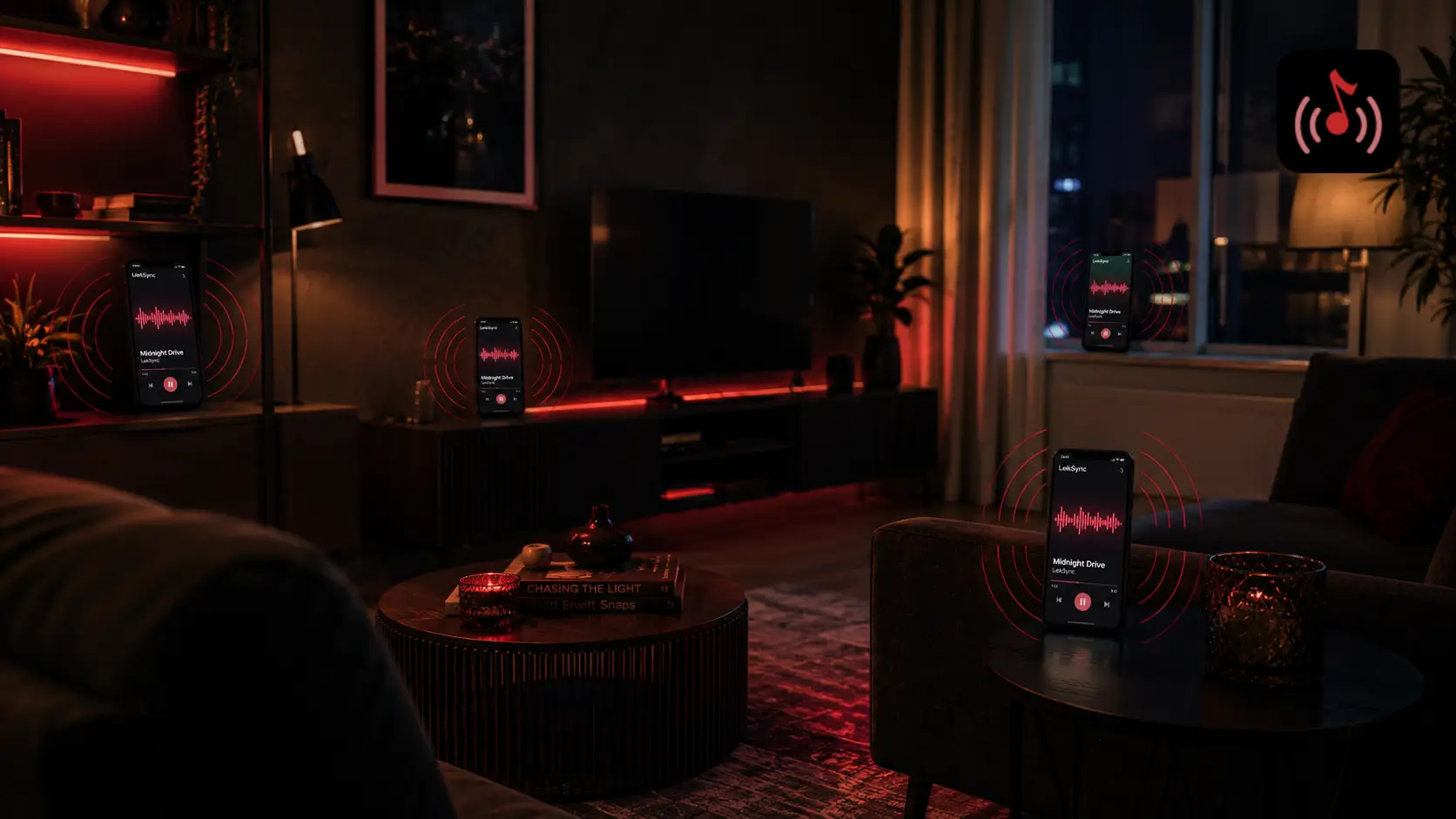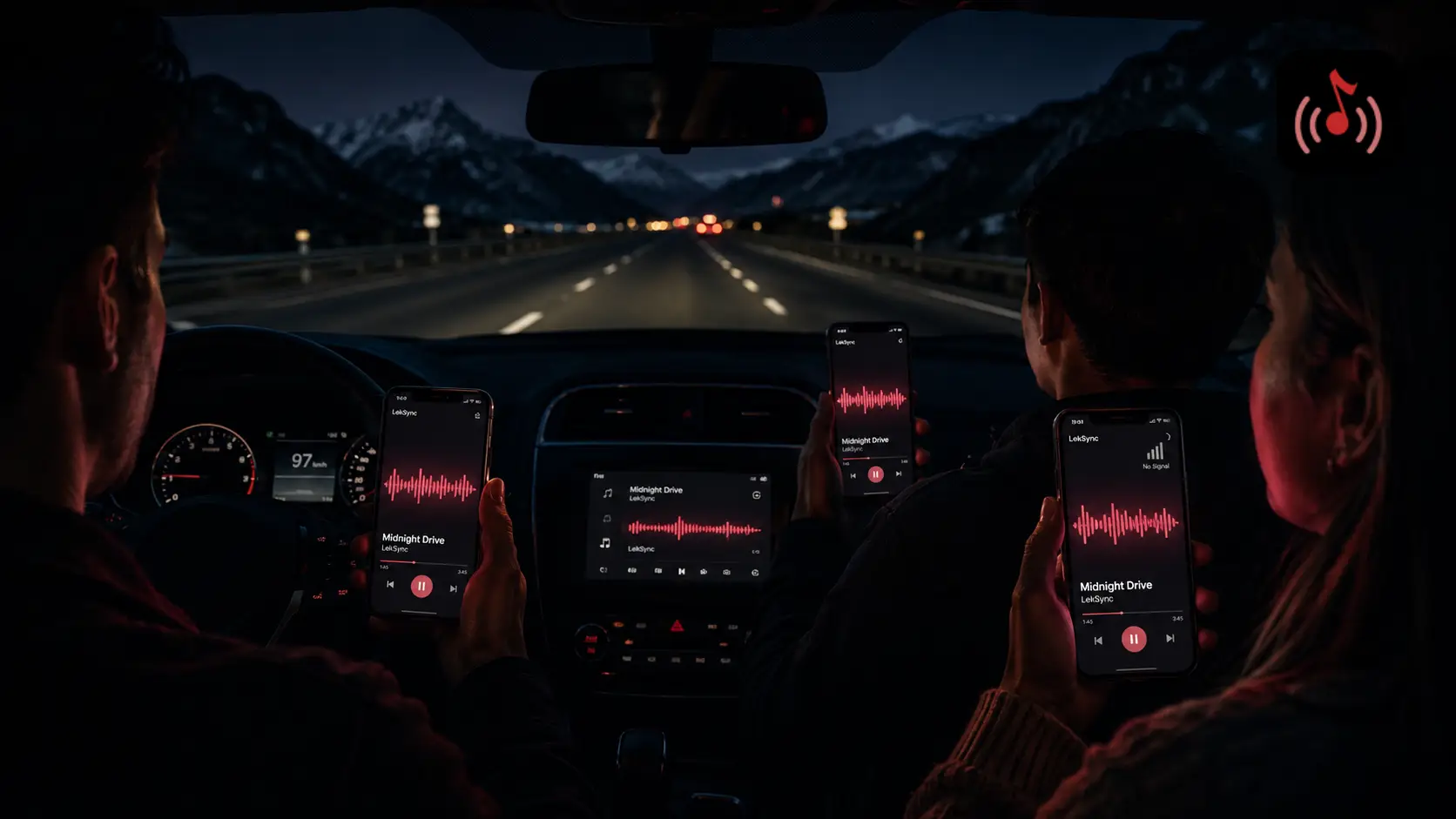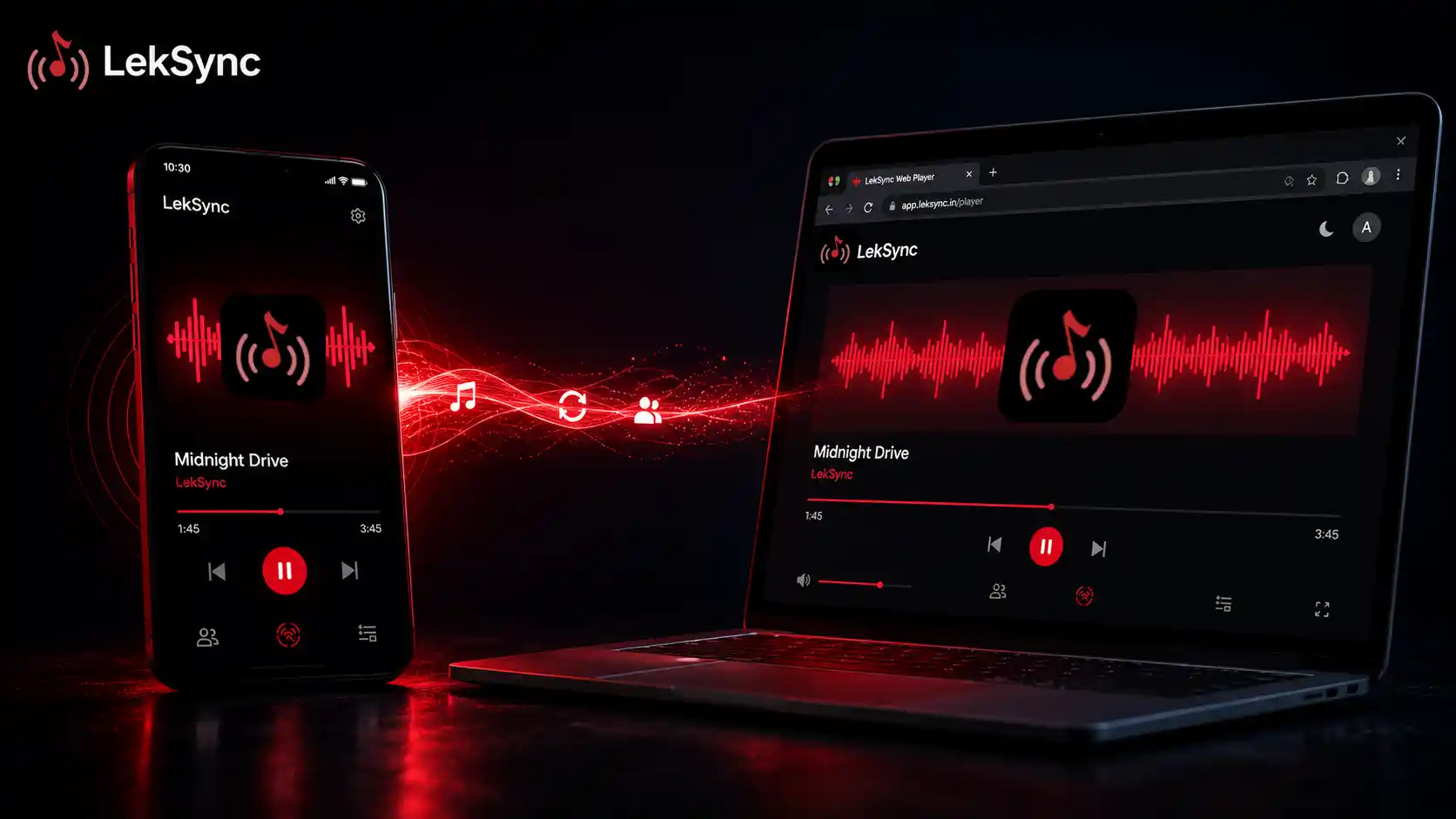
One of the most common reasons people don't join a LekSync room is that they don't want to install an app for a single party. Fair enough. That's why LekSync has a fully featured web receiver — your friends can hear your music in a browser, on any device, in less than ten seconds. The web receiver launched as part of LekSync 2.1.
Here's everything you need to know about how it works and how to use it.
The 10-Second Setup
Suppose you're hosting a LekSync room. Your room code is AB3CD5EF7G. To get a friend to join without installing anything:
- Send them this link: https://leksync.in/receiver/AB3CD5EF7G.
- They open the link in any browser (mobile or desktop).
- They type their name and tap Join.
- They're connected. Music plays.
That's the entire flow. No app store, no Google sign-in, no profile setup. The first time you do it, you'll wonder why every music sharing app makes you create an account.
What Works on the Web Receiver
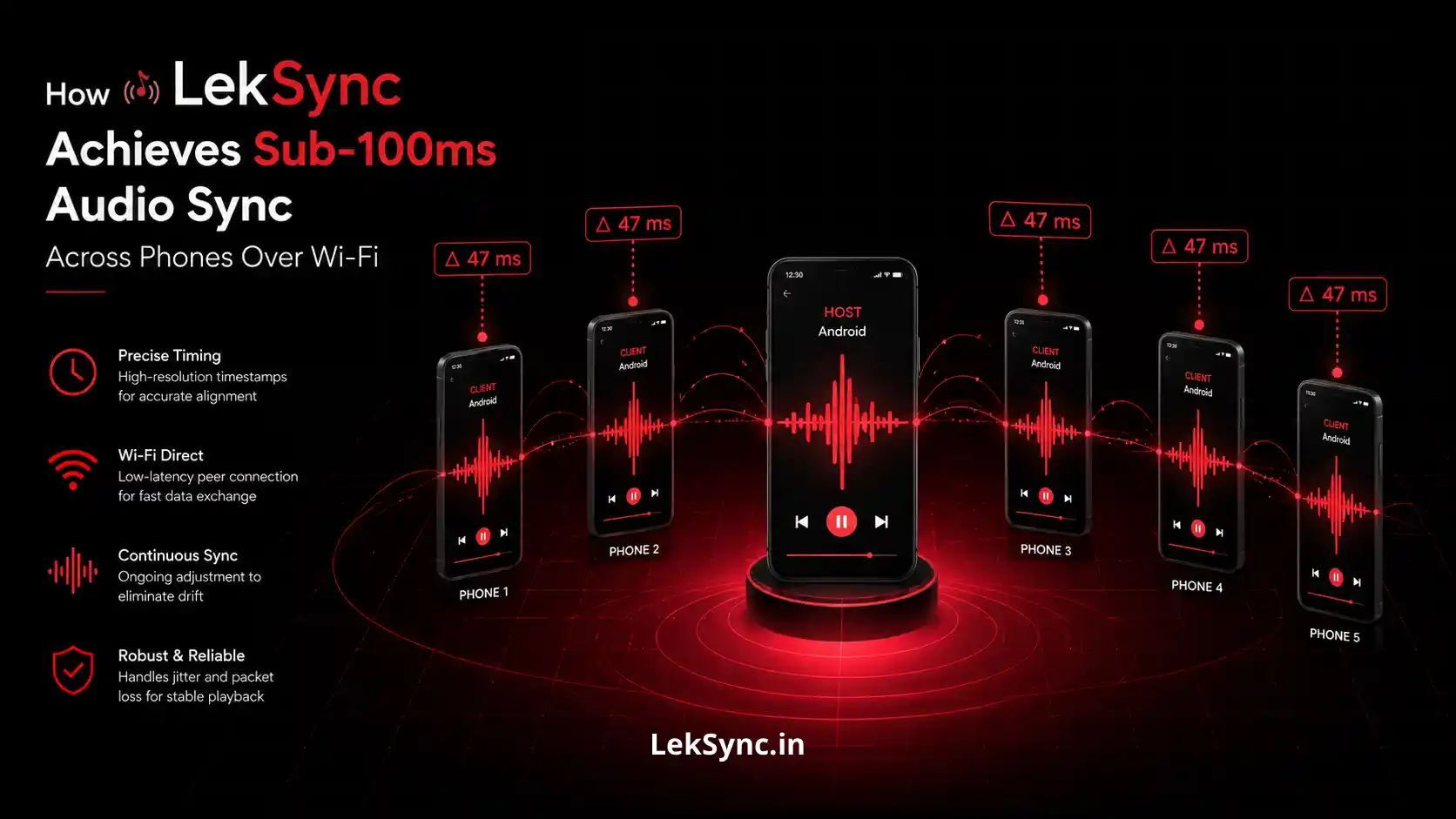
- Music playback — Opus at 128 kbps, in sync with the host within ~100 ms.
- Album art — embedded MP3 album art shows up automatically.
- Track title and artist — updates in real time as the host changes songs.
- Live position sync — if the host seeks, your receiver jumps to the new position.
- Host mic — if the host enables their microphone, you hear them through a separate audio stream (with independent volume control).
- Independent mic and music volume sliders — turn the host's voice down without affecting the music.
- Disconnect button — leave the room cleanly when you're done.
What Doesn't Work (Yet)
- Uploading your mic back to the host — web receivers are receive-only for now. If you want to talk to the room you need the Android app. We're working on adding mic upload to the web receiver in 2.2.
- Receiving video — currently only audio streams to the web receiver. Video sharing is app-only.
- Receiving file transfers — if the host shares a file (e.g. a video for offline playback), the web receiver doesn't support it.
How the Web Receiver Works Under the Hood
The web receiver is one self-contained JavaScript page. When you open it:
- The page connects to Firebase to read room metadata (host name, room name, max receivers).
- It writes your peer ID into the room's
peerssubcollection. - The host's app sees the new peer doc, generates a WebRTC offer, and writes it to your peer doc.
- The browser applies the offer, generates an answer, and writes it back.
- ICE candidates are exchanged through the same peer doc.
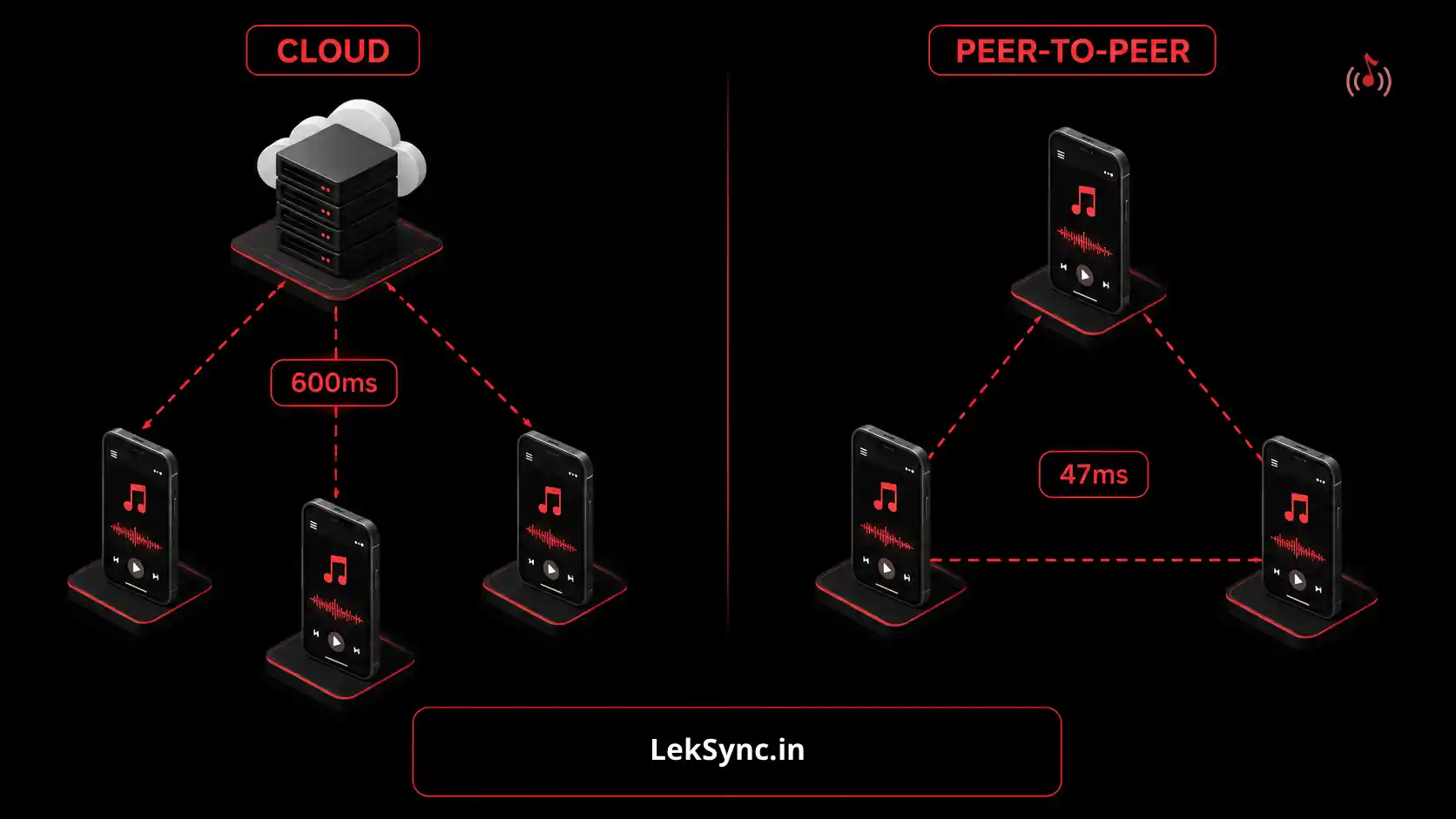
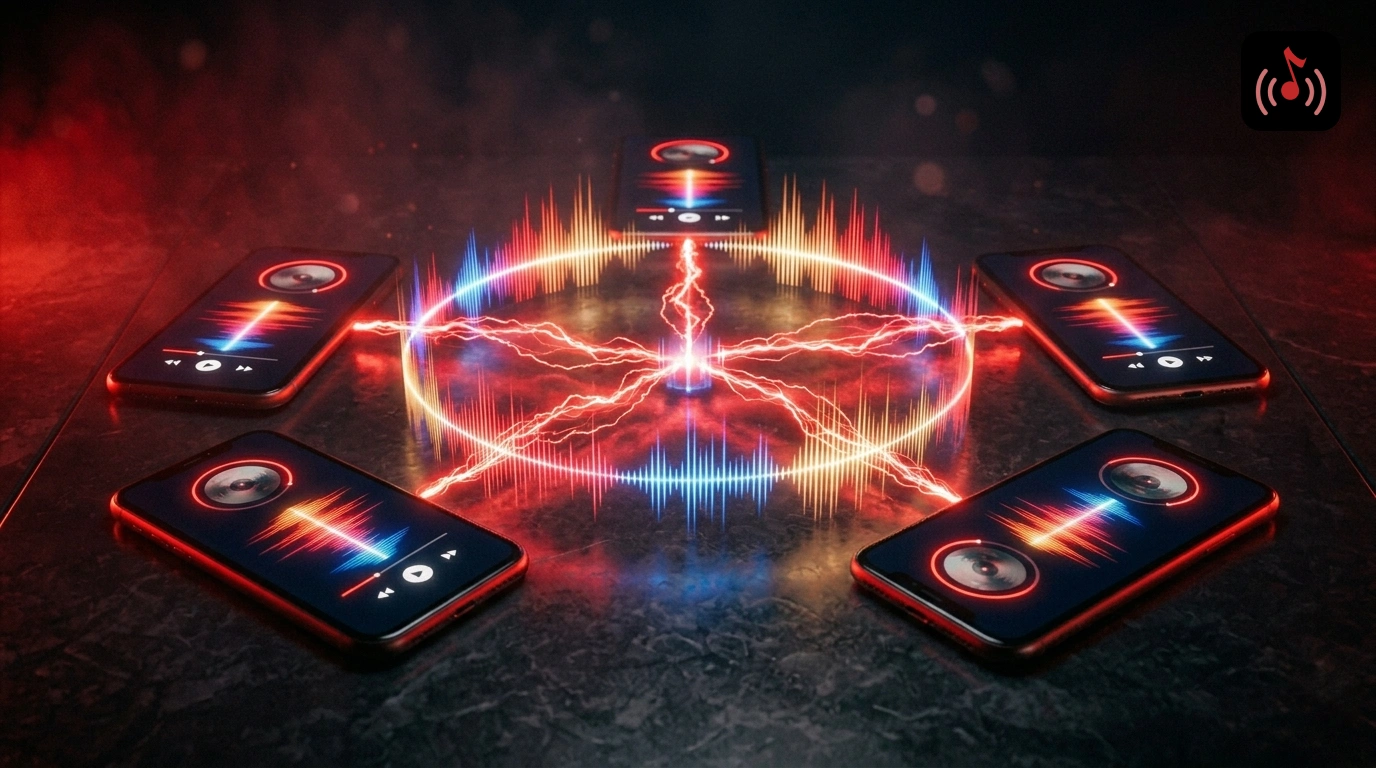
- A direct peer-to-peer WebRTC connection is established — your browser talks straight to the host's phone, no intermediate server.
- The host streams Opus-encoded audio frames over a data channel.
- Your browser decodes them via WebAssembly and plays them through Web Audio API with a 150 ms jitter buffer.
Total time from clicking the link to hearing music: usually under 5 seconds on a decent connection.
When to Use the Web Receiver vs the App
Use the web receiver when:
- The listener doesn't want to install an app for a one-off event.
- The listener is on iOS (the full LekSync app is Android-only — the web receiver is the iOS option).
- The listener is on a laptop or tablet.
- You want the lowest possible friction for joining.
Use the Android app receiver when:
- The listener wants to send mic audio back to the host.
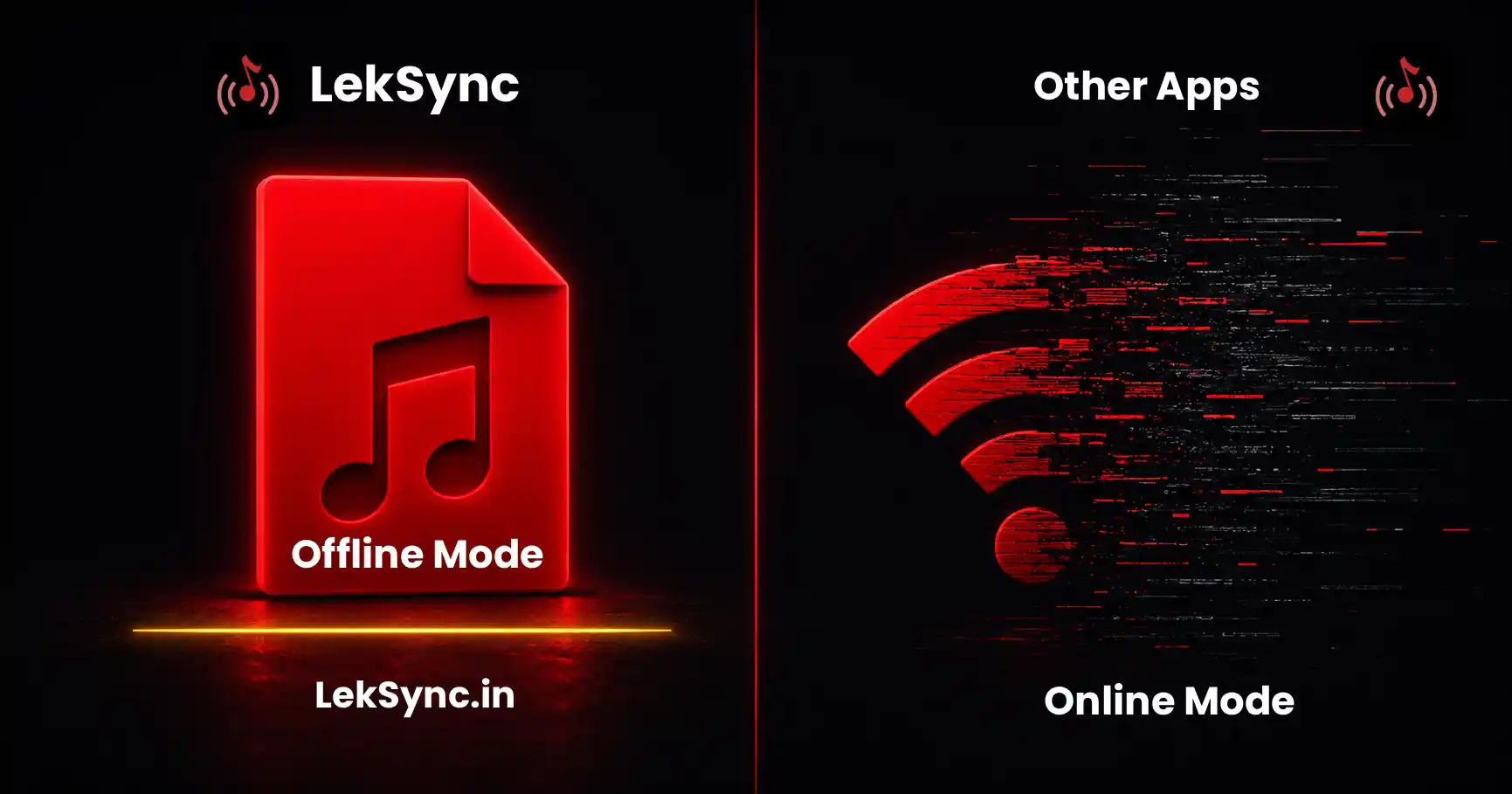
- The listener wants offline / hotspot mode (no internet needed).
- The listener wants video streaming support.
- The listener wants to use the equalizer at the receiver level.
Tips for Sharing the Link
The receiver URL works in any messenger app. We've seen people share it through:
- WhatsApp — paste the link, friends tap it.
- Instagram DM — same as WhatsApp.
- QR code — generate a QR for the URL, friends scan with their camera.
- Group chats — drop the link once, everyone in the chat joins.
The room code itself is also pasteable directly into the app's "Join Online Room" dialog if your friend has the app installed and prefers it.
Add to Home Screen
If a friend rejoins your rooms often, they can install the web receiver as a PWA:
- Android Chrome: Chrome prompts "Add LekSync to Home Screen" after a few visits. They tap it and the receiver becomes a launchable app icon.
- iOS Safari: Share button → "Add to Home Screen". Same result — launches fullscreen.
Once installed as a PWA, opening it goes straight to the join screen — no browser chrome, no URL bar, like a native app.
Privacy and Data
The web receiver doesn't track you. We don't ask for cookies, we don't use analytics on individual listeners, and we don't keep a record of what songs you listened to. The only data we store is your display name (so the host can see who joined) and aggregate room statistics for the host's analytics dashboard. Your audio never touches our servers — it goes peer-to-peer from the host's device straight to your browser.
Try It Now
The fastest way to see it work: have a friend with the Android LekSync app start an online room, send you their 10-character code, then open leksync.in/receiver, paste the code, and join. You'll be listening together in seconds.